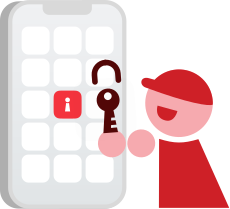
Safer and faster
logins with passkeys

Passkeys protect you from scams targeting passwords and QR logins.

Benefits of passkeys

Strong login security

Passkeys protect you from phishing scams that use fake websites.

Log in faster without redirects

Log in with a scan on desktop or a tap on your phone — all without opening the Singpass app.

Why switch to passkeys?

Your passkey will not work on fake websites

Your device creates a unique key that only works with official Singpass logins, protecting you from phishing scams.

Your passkey stays on your device

Your passkey never leaves your device. Since you never type or share anything, there's nothing for scammers to steal. Even if you land on a fake website, you're protected.

How to use your passkey

Create your passkey

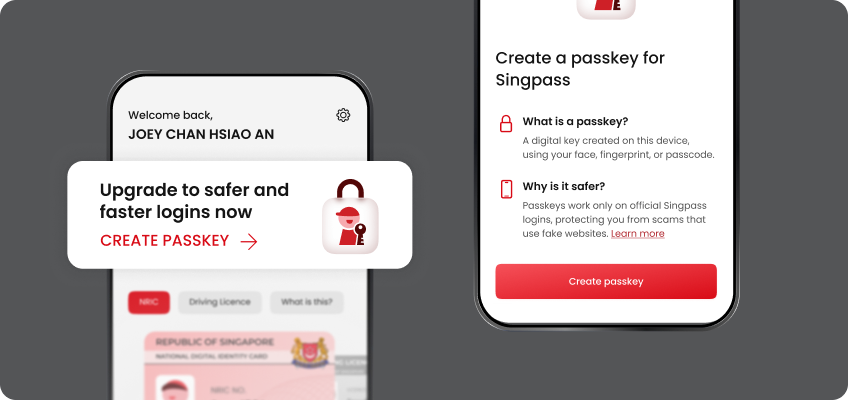
  1. Singpass app showing create passkey option

    Open the Singpass app, tap Create passkey.

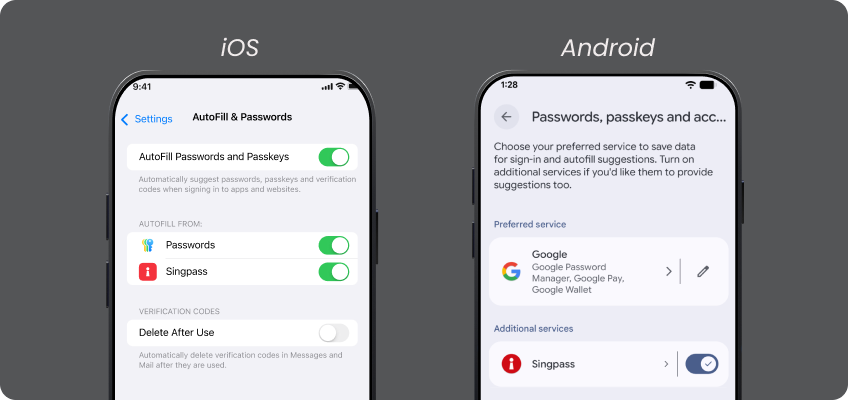
  2. iOS and Android device settings showing Singpass autofill toggle

    Go to your device settings and enable autofill for Singpass.

Log in using your phone

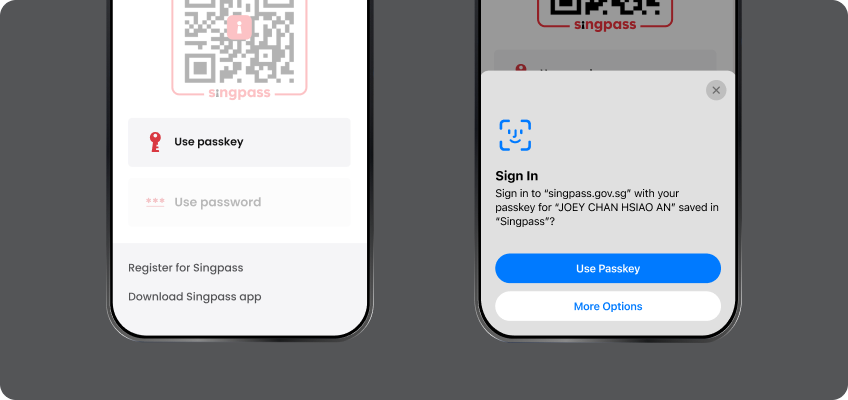
  1. Singpass login screen with Use passkey option and passkey sign in prompt

    On the Singpass login screen, select Use passkey.

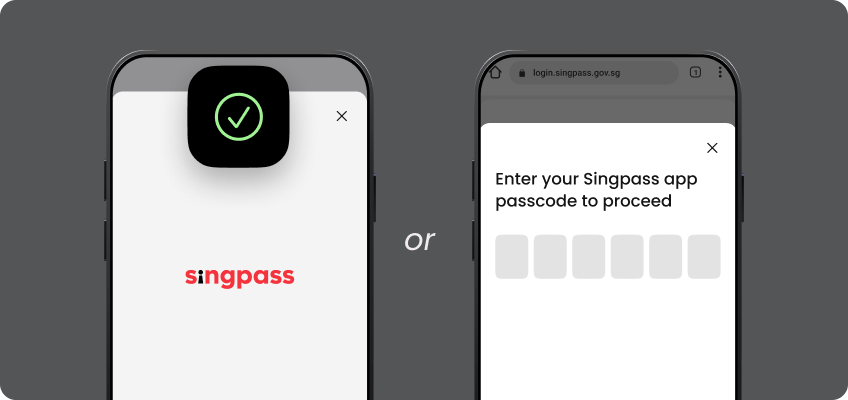
  2. Face ID or Singpass app passcode prompt

    Verify it’s you using your face, fingerprint or Singpass passcode.

Log in using your computer

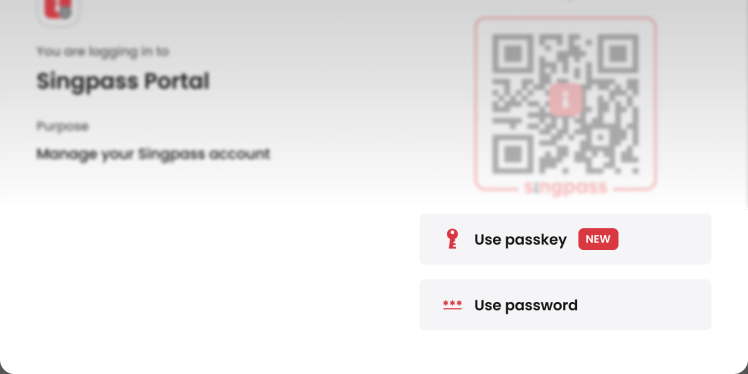
  1. Singpass login screen with Use passkey option

    On the Singpass login screen, select Use passkey.

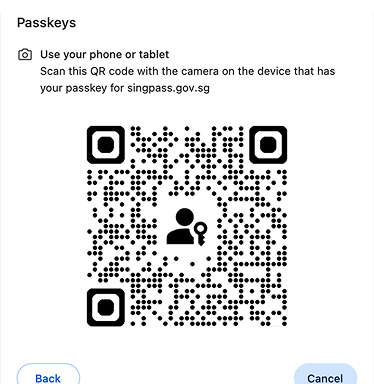
  2. Passkey QR code to scan with your phone

    Scan the passkey QR code using your phone’s camera or Singpass app.

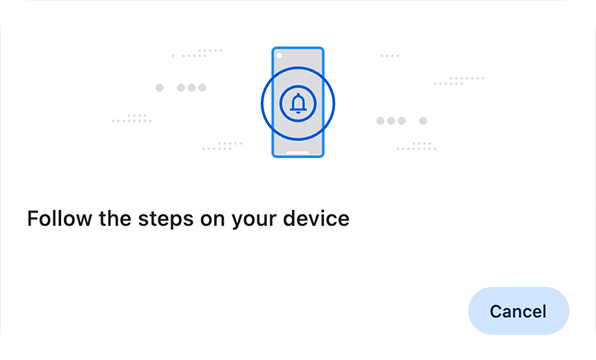
  3. Follow the steps on your device prompt

    Turn on Bluetooth on both devices when prompted.

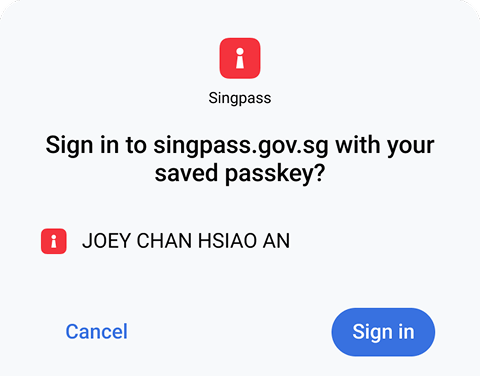
  4. Sign in with your saved passkey dialog

    Verify it’s you using your face, fingerprint or Singpass passcode.

Frequently Asked Questions (FAQs)

What are passkeys?

Passkeys are a new way to log in with Singpass. Faster than passwords. Safer than QR codes.

A unique digital key is created on your device, unlocked only by your face, fingerprint or passcode. It never leaves your device, so only you can use it to log in.

Why do I need to turn on my autofill for Singpass?

Autofill needs to be turned on so that the Singpass app can securely use your passkey during login.

When you select Use passkey during Singpass login, your device uses the autofill service to:

  • detect that a passkey is available in the Singpass app
  • prompt the Singpass app to confirm your login

Without autofill enabled, your device will not be able to access or use the passkey stored in the Singpass app.

Turning on autofill does not mean your information is automatically filled into websites. It is only used to securely retrieve and use your passkey when you choose to log in.

Having trouble enabling autofill? Find out how to enable it.

Switch to passkeys today

Your safest login is also your simplest, make the switch in a few taps.

Have questions about passkeys?

Read our FAQ or contact the Singpass Helpdesk.

Create a passkey in the Singpass app

QR code to create a passkey in the Singpass app. Scan it with your phone camera.
  1. 1. Scan this QR code to launch the Singpass app

    Don’t have the app? You will be redirected to download it from the official app stores.

  2. 2. Create a passkey that will stay securely on your device